It may be necessary to change a browser setting for the Contractor Lookup to work correctly.
If you are getting errors or the Lookup is not working, please follow the short steps below to set up your browser.
Set up FireFox | Set up Internet Explorer
Setting up FireFox
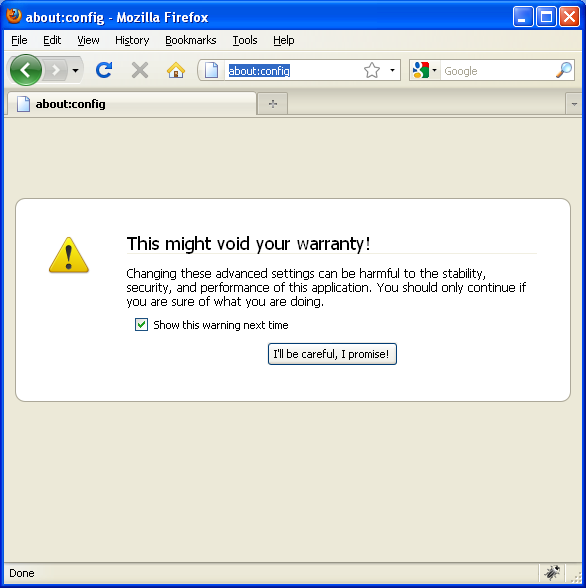
- Open a new tab (CTRL + T) and type "about:config" in the address bar and press Enter. Click the button "I'll be careful, I promise!" to continue.
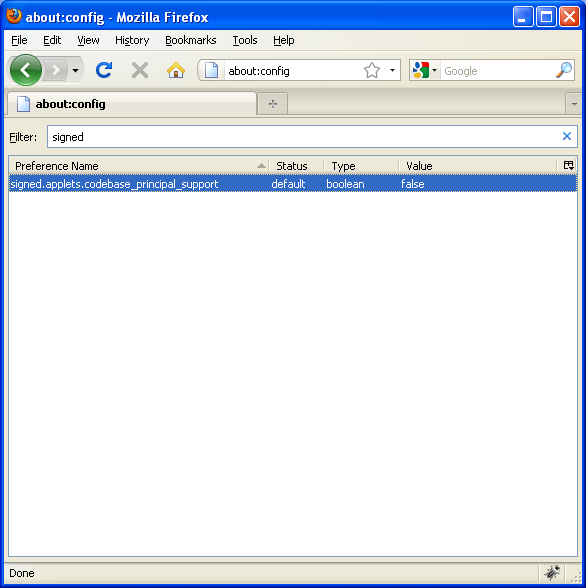
- Type "signed" in the Filter field to find the "singed.applets.codebase_principal_support" preference.
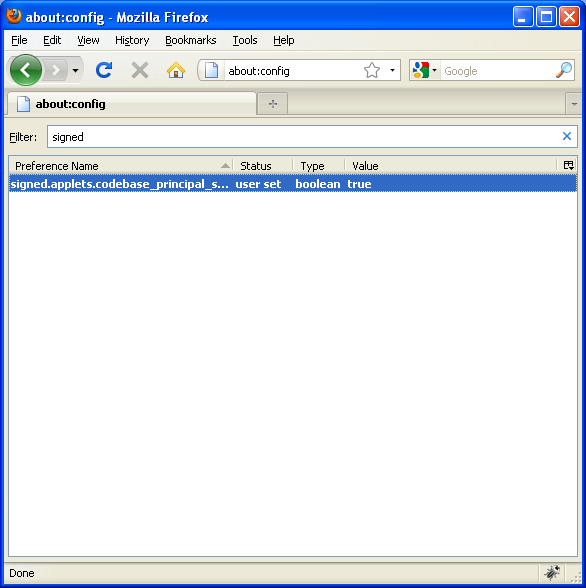
- Double click the "singed.applelts.codebase_principal_support" preference. This will change the status to User Set and Value to true.
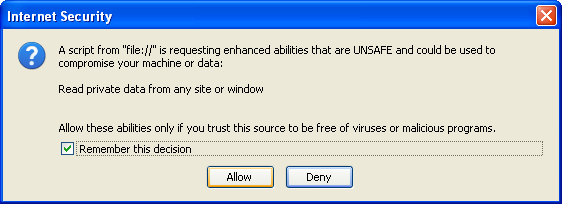
- You're done! Close the new tab you opened and refresh (F5) the rollbase page you were working on. You may be prompted to allow "Read private data from any site or window" when trying to lookup a contractor, if so check Remember this decision and click "Allow".
Setting up Internet Explorer
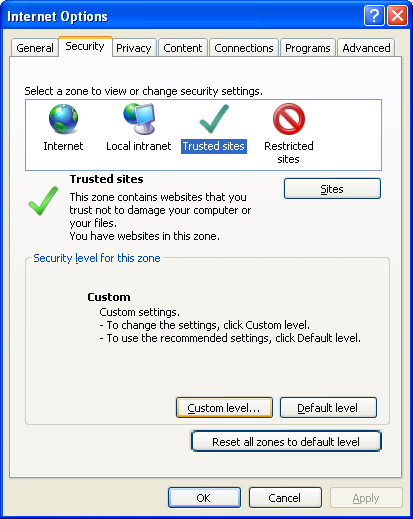
- In Internet Explorer, click Tools > Options. Then click the Security tab click Trusted Sites.
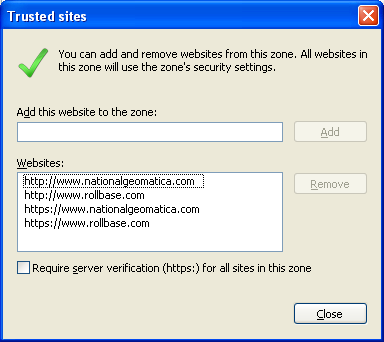
- Add the four domains to your trusted sites as shown below. http:// and https:// for rollbase.com and geo3o.com. You may have to uncheck the box to add the two http://... domains. Click the "Close" button to continue.
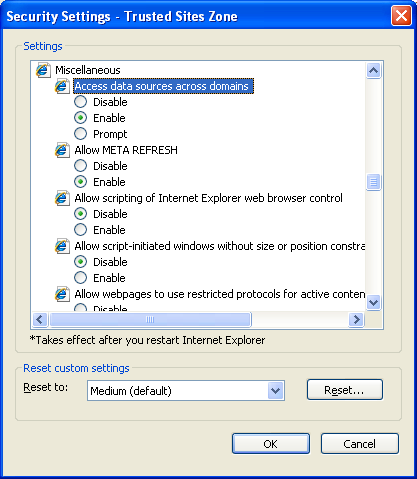
- Click the "Custom level..." button. Scroll down to the Miscellaneous section and change "Access data sources across domains" to Enable. Click OK.
- You're done! Refresh (F5) the rollbase page you were working on. You may be prompted to "View both secure and non-secure items" when trying to lookup a contractor, if so click "Yes" or "Confirm".